Query
Users can provide additional query config using the query builder or using KQL.
Query Type
Sets the configuration to use the query builder or a custom KQL query.
Query Builder
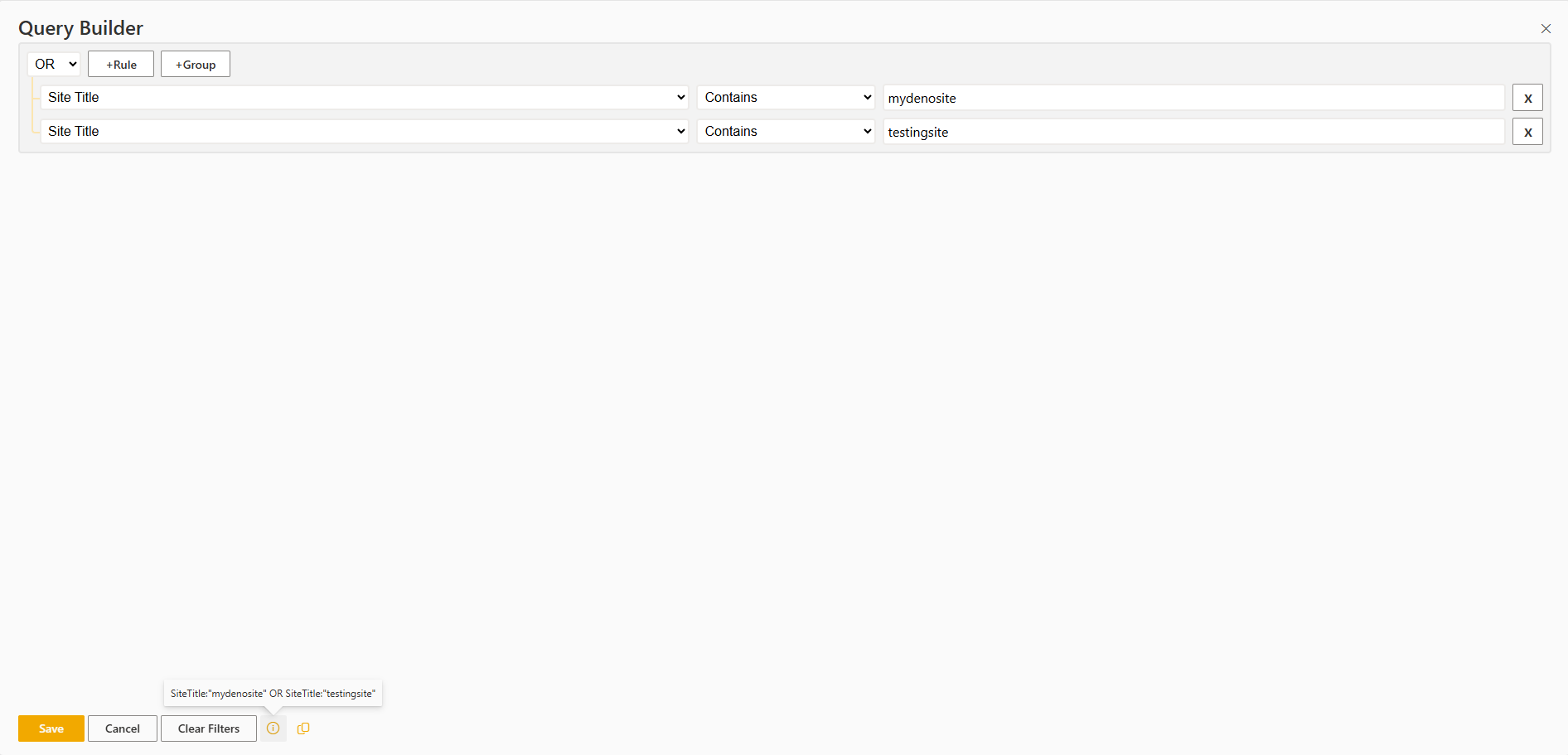
Open the query builder panel to easily build a query.
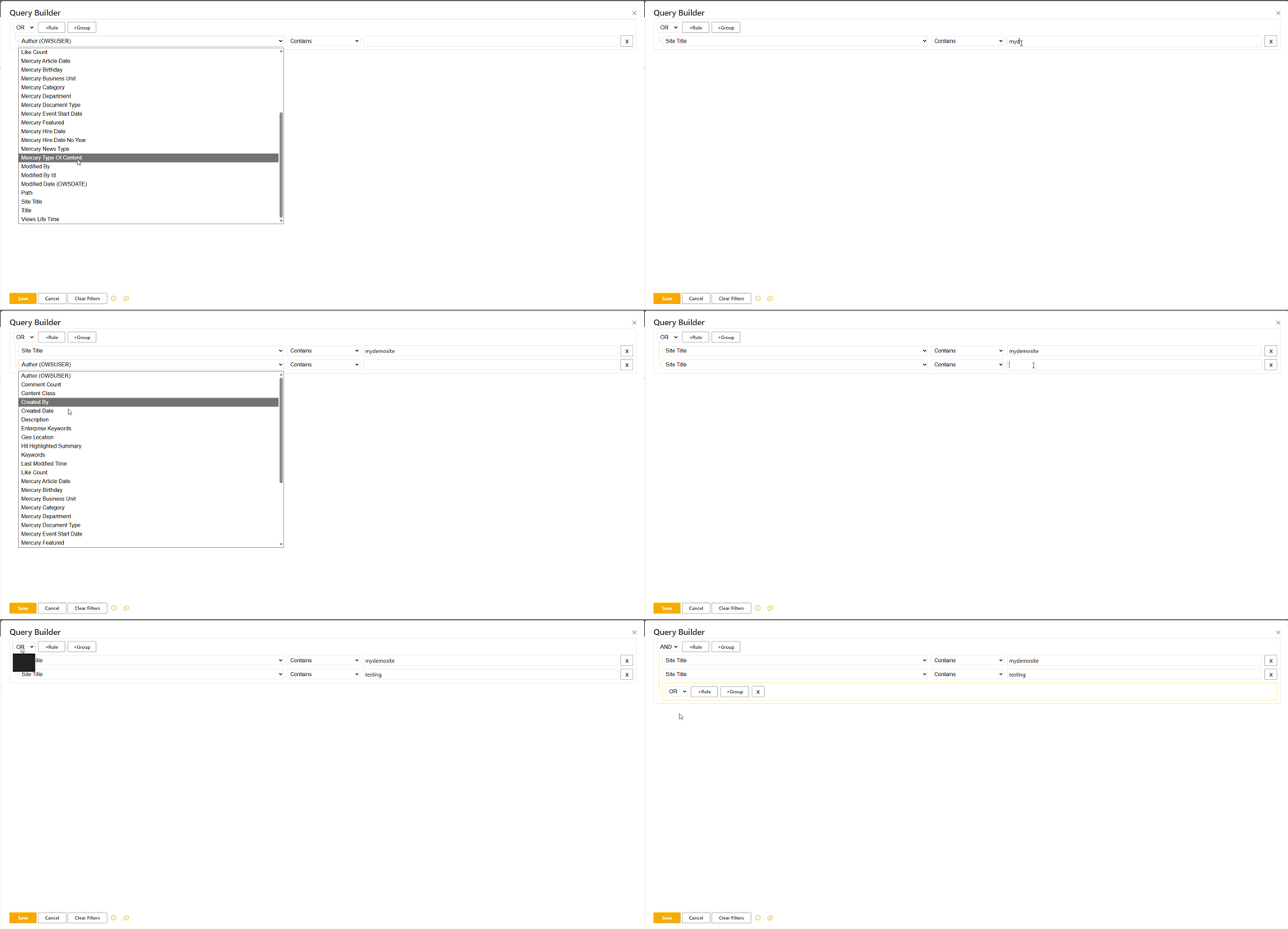
Property
The property to be used in the query.
Note
The options are a list of all properties from system, available properties, advanced, Mercury or docCentrum
Operator
Select the operator to be used with the property and the value.
- Contains (:)
- Equals (=)
- Less Than (<)
- Greater Than (>)
- Less Than or Equal to (<=)
- Greater Than or Equal to (>=)
- Not Equal to (<>)
Value
Enter the value to be used in the query for the selected property.
Builder Controls
Rules
Rules are added using the configuration above and will always be present in the default query.
Groups
Rule groups can be added by the +Group button. Groups can contain rules that relate to eachother and will be in () within the query.
Rule Operator
At the top of the query builder there is a dropdown, default value is 'And'. Use this dropdown to set the operator and/ or between rules.
Saving
By clicking the save button this will apply the current query to the search.
The cancel button will remove any changes made and close the query builder panel.
The clear filters will clear any changes made to the last saved query but not close the query builder panel.
View Query
When rules or groups have been added to the query, hovering over the information icon will allow viewing of what the query looks like in the request.
Clicking the copy button will copy the query to the clip board, this will allow users to paste the query into the KQL text box when in advanced query type.